From Terraform Template to Well-Architected Score in 10 Minutes
14 April 2026

Deploy production-grade AWS infrastructure at the click of a button. Then prove it's well architected.
I have a confession to make. I've spent years telling developers to "follow AWS best practices" while privately having no reliable way to verify whether they actually did. Sure, I could log into the console, squint at a hundred settings across a dozen services, and pretend I'd checked everything. But we all know that's fiction.
The real problem isn't laziness. It's that deploying good infrastructure is tedious, and proving it's good is even worse. You're expected to remember that S3 versioning should be on, that EBS volumes need encryption, that your ALB should have a WAF in front of it, that RDS wants multi-AZ in production, and that you need CloudWatch alarms for... well, basically everything. Miss any of it and you'll find out during an incident review. Preferably someone else's.
— Every auditor, compliance officer, and VP of Engineering, eventually.
So the team at Insights built something. The AWS Architect plugin for Insights does two things that I've never seen done well in a single tool: it deploys production-grade AWS infrastructure from curated Terraform templates, and then it automatically scores that infrastructure against the AWS Well-Architected Framework. In the same workflow. From the same UI.
Five Patterns, Two Environments, Zero YAML Wrestling
AWS Architect ships with five battle-tested infrastructure patterns, each available in Dev and Production configurations:
- Static Website — S3 + CloudFront + Route 53 + ACM. Production adds WAF, security headers, access logging, and CloudWatch alarms.
- Web Application — EC2 + ALB + RDS + S3 in a multi-AZ VPC. Production adds WAF, encrypted EBS, auto-scaling, multi-AZ RDS with automated backups, and a full alarm suite.
- Serverless API — Lambda + API Gateway + DynamoDB. Production adds WAF, X-Ray tracing, a dead letter queue, rate limiting, and alarms for errors, throttles, and p99 latency.
- Container Platform — ECS Fargate + ALB + ECR with scan-on-push. Production adds WAF, HTTPS, auto-scaling from 2 to 10 tasks, and alarms for CPU, memory, and 5xx errors.
- Kubernetes Cluster — EKS with managed node groups across three availability zones. Production adds KMS secrets encryption, 90-day log retention, and CloudWatch alarms.
You pick a pattern, fill in a short form (name, region, instance type if relevant), toggle Dev or Prod, and click Deploy. That's it. The plugin handles Terraform init, plan, and apply in the background. You can watch the logs in real time or close the modal and come back later — the deployment continues either way. A background job indicator in the sidebar keeps you informed.
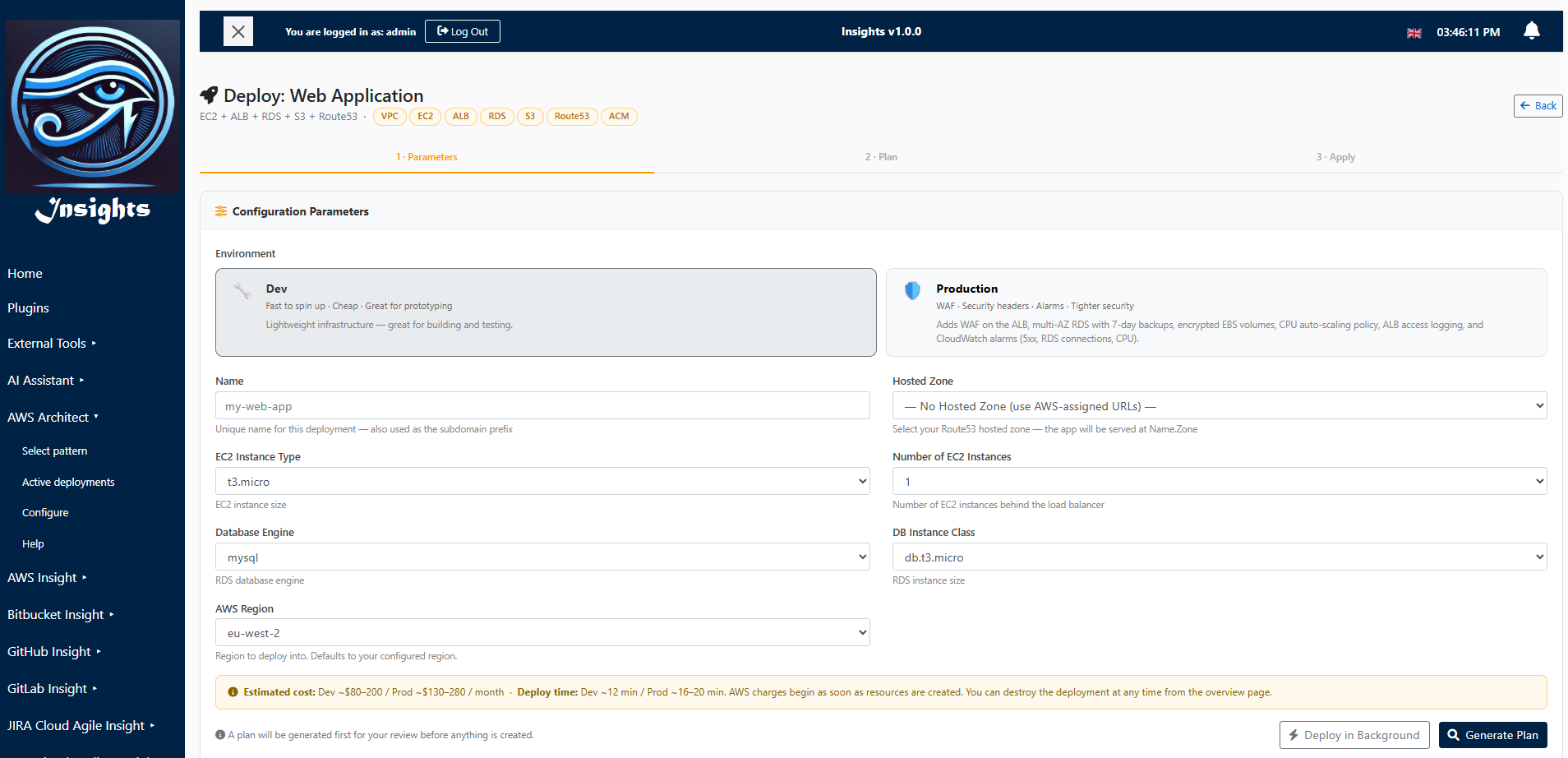
The deploy form for a Web Application pattern — choose your instance type, database engine, and environment.
Active Deployments: Your Infrastructure at a Glance
Once deployed, everything appears on the Active Deployments page. Each deployment shows its name (linked to the live URL), pattern type, domain, environment badge, region, and status. Click the info icon for a modal with live AWS status checks — healthy targets, RDS state, certificate status, the lot. Click the architecture icon and you get a colour-coded diagram of exactly what was deployed, with VPC boundaries, subnet labels, and production-only components highlighted.
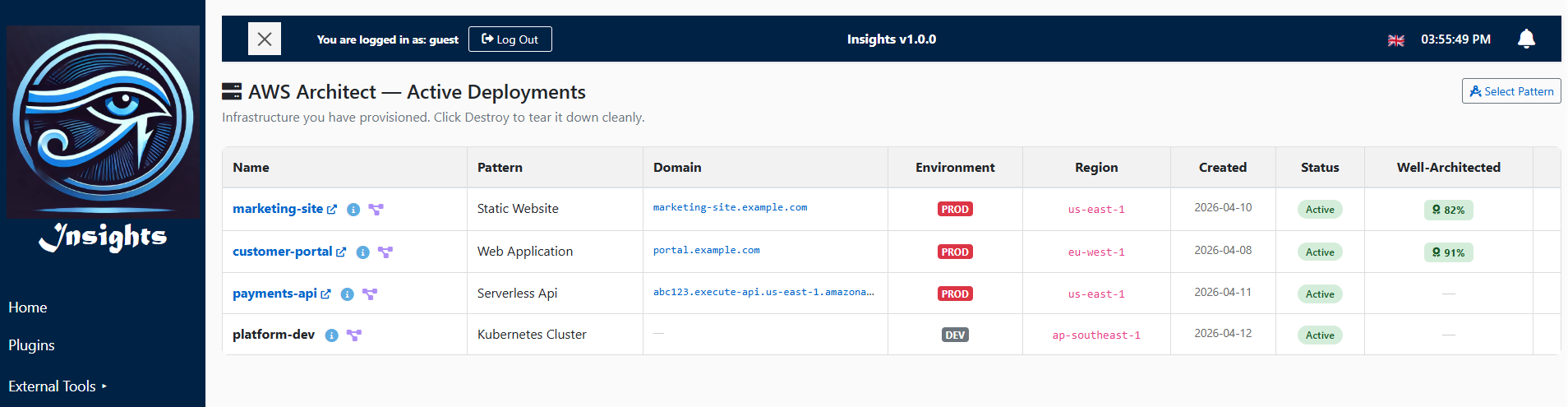
Active Deployments with live status, Well-Architected scores, and architecture diagrams.
The architecture diagrams aren't generic clip art. They're data-driven — if you deployed a web application with 2 EC2 instances running t3.small with a Postgres database, the diagram shows exactly that. Dev deployments hide production-only components (WAF, multi-AZ, auto-scaling), so you can see precisely what you're paying for.
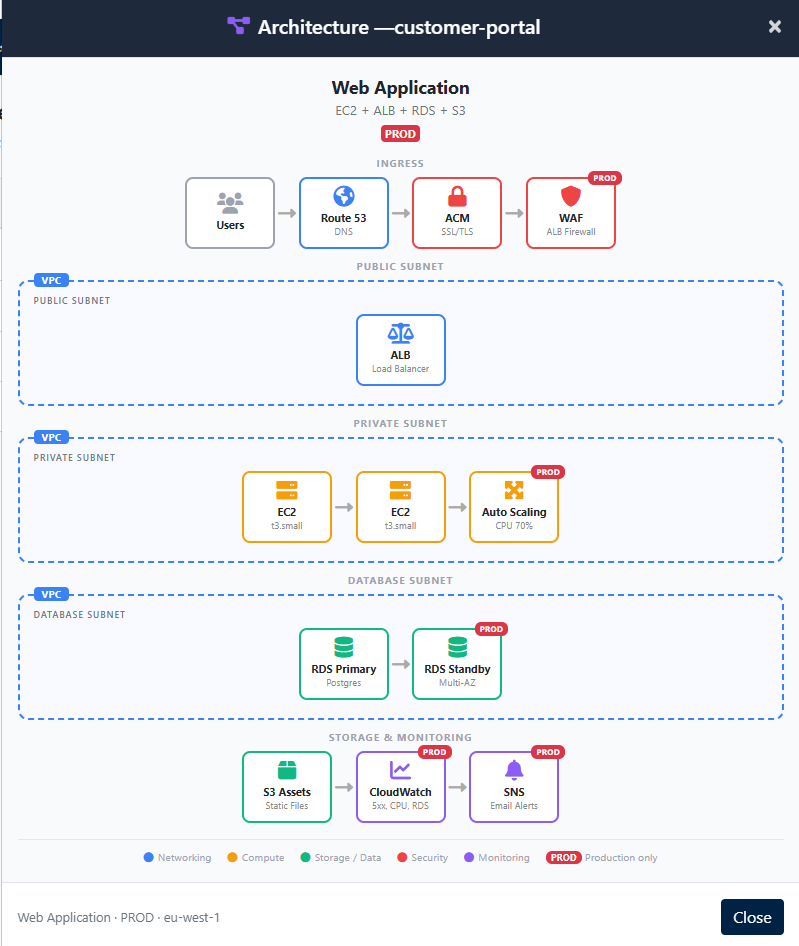
A production Web Application architecture — colour-coded by service category with VPC boundaries.
The Well-Architected Review: Automated Accountability
Here's where it gets interesting. Each deployment has a "Review" button in the Well-Architected column. Click it, and the plugin creates an actual AWS Well-Architected Tool workload in your account, then automatically answers the review questions based on what it knows the Terraform deployed.
Think about that for a moment. The plugin wrote the Terraform, so it knows exactly which best
practices are in place. S3 encryption at rest? Selected. CloudFront HTTPS? Selected. WAF enabled? Selected
(if it's production). Multi-AZ RDS? Selected. Infrastructure as code? Obviously selected — you just
watched it run terraform apply.
The result is an instant score — a percentage based on how many best practices are satisfied versus how many are flagged as high or medium risk. Production deployments naturally score higher than dev, because they include WAF, encryption, alarms, and multi-AZ configurations that dev deliberately skips for cost savings.
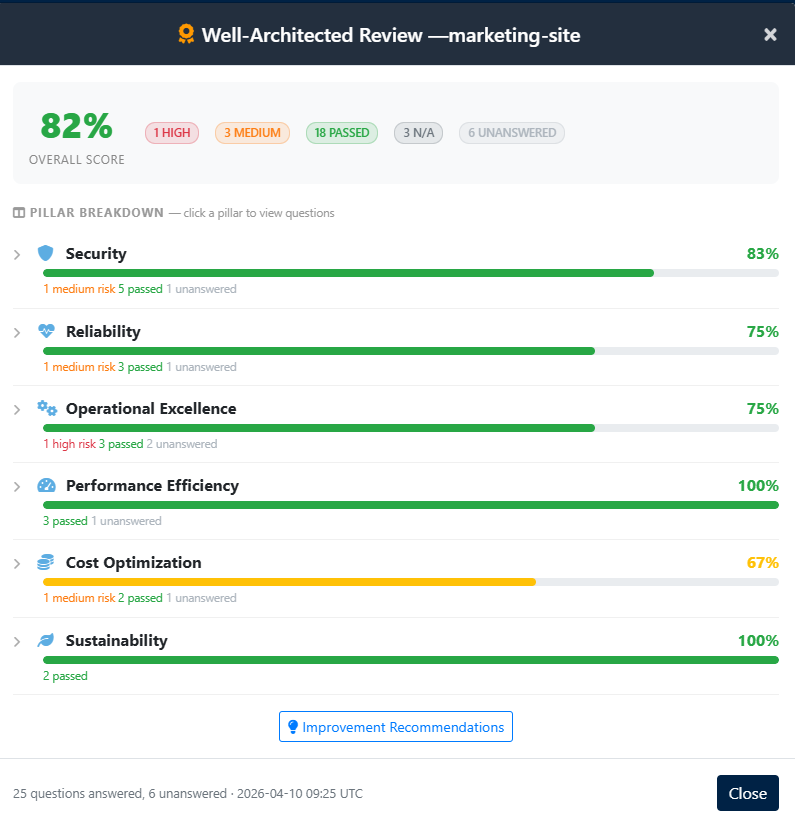
A pillar-by-pillar Well-Architected breakdown with progress bars and risk counts.
But What About the Questions You Can't Auto-Answer?
Not everything can be inferred from Terraform. The Well-Architected Framework asks questions about incident response procedures, team training, cost monitoring practices, and data classification — things that depend on your organisation, not your infrastructure code. Those questions show up as "Unanswered" in the review.
And this is where the plugin goes from clever to genuinely useful. Click any pillar in the score breakdown — Security, Reliability, Operational Excellence — and it expands to show every question with its risk level and all available best-practice choices as checkboxes. Auto-answered choices are pre-checked. You can review them, tick any additional practices your team actually follows, and hit "Save Answers & Re-score". The score updates instantly.
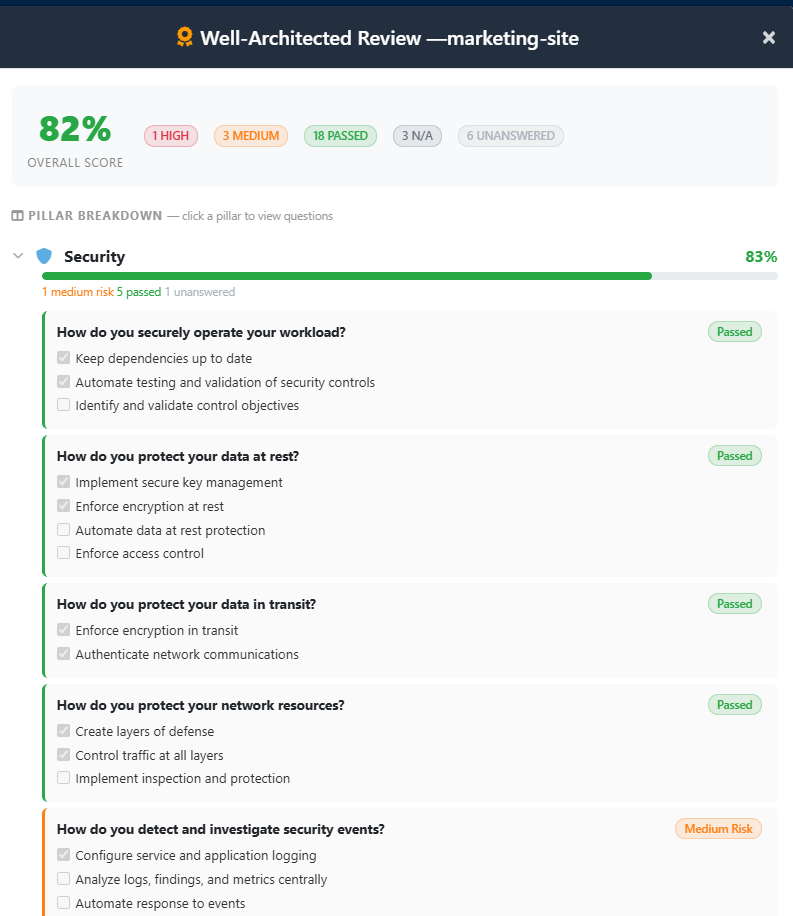
Drill into any pillar to see individual questions, risk levels, and editable best-practice checkboxes.
If you re-run the review later (say, after switching from dev to prod), your manually provided answers are preserved. The plugin saves them from the old workload and replays them onto the new one, so you never lose work.
Why This Matters
I've sat through enough architecture reviews to know that the hardest part isn't building the infrastructure — it's proving you built it right. The Well-Architected Framework is excellent in theory but painful in practice: dozens of questions across six pillars, most of which require you to remember what you deployed three months ago and whether it had encryption enabled.
AWS Architect collapses that entire cycle into a single workflow:
- Deploy from a proven template with production hardening built in.
- Review automatically — the infrastructure scores itself.
- Refine by answering the organisational questions your team can speak to.
- Present the score to auditors, leadership, or your future self.
Dev vs Prod isn't a guessing game anymore. It's a toggle with a measurable difference in your Well-Architected score.
Try It Yourself
The AWS Architect plugin is available now in Insights. The product includes sample deployments with Well-Architected scores and architecture diagrams you can explore — no AWS account required.
If you've ever deployed AWS infrastructure and then been asked to prove it follows best practices, this is the tool you wish you'd had. And if you haven't been asked yet — trust me, you will be.
Take control — take a look at Insights.
Stay tuned for more updates and insights from our team. Contact us at sales@insights-online.com for inquiries.